Veo 3.1 Lite Image-to-Video: 商品写真を1分未満でクリップに変換
Veo 3.1 Liteのimage-to-videoモードを使って、静止画から商品デモ、ソーシャルメディアコンテンツ、ブランド動画を作成する方法 — 実際の例とワークフローのヒント付き
学べる内容
- ✅ Veo 3.1 Lite における image-to-video の仕組み(テキストのみ生成との比較)
- ✅ 最良の結果が得られる商品写真の種類(避けるべき種類も解説)
- ✅ モーションを制御するための最初のフレーム・最後のフレームテクニック
- ✅ 商品デモ、ファッション、フード、ソーシャルフック向け Prompt テンプレート
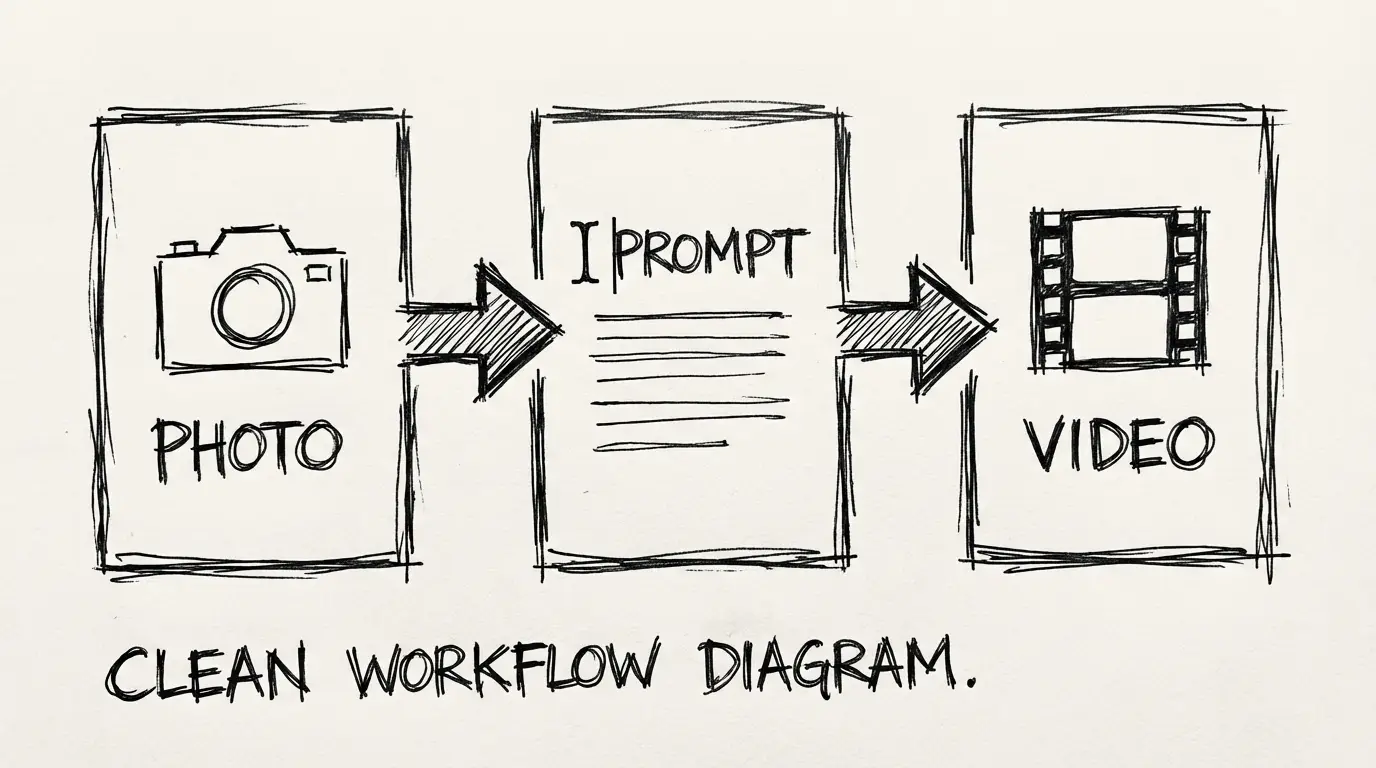
- ✅ 完全なワークフロー:写真 → 動画 → 投稿準備完了
なぜ画像から動画への生成がワークフローを変えるのか
Veo 3.1 Lite を初めて使う方は、料金、仕様、Google の動画モデルラインナップの中での位置づけについて、事前に モデル概要 をお読みください。
テキストから動画への生成は強力ですが、確率的です。欲しい内容を説明すると、モデルがそれを解釈する方式だからです。画像から動画への生成はこれと異なり、正確な視覚の起点をあなたが提供し、モデルはそこからアニメーションを生成します。
商品制作において、この点は非常に重要です。あなたの商品には特定の形状、色、素材、ブランドがあり、テキストの prompt ではこれらの詳細を保証できません。画像なら可能です。
Veo 3.1 Lite は、4秒、6秒、8秒の動画長に対応し、720p と 1080p の image-to-video を 16:9 と 9:16 両方のフォーマットでサポートしています。NanoBanana で8秒の生成が20クレジットなので、1つの商品写真につき5~10のバリエーションを生成して最良のものを選ぶのに十分なほど安価です。
Veo 3.1 Lite での画像から動画への生成の仕組み
あなたが提供するのは次の3つです:
- 1枚の参照画像 — 動画の最初のフレーム
- テキスト prompt — モーション、カメラ、音声を記述
- 動画長さとアスペクト比 — 4s/6s/8s、16:9 または 9:16
モデルは、あなたの画像から開始してアニメーションを拡げる動画を生成します。画像が視覚のアイデンティティを定め、prompt が次に起こることを指示します。
核心的なポイント: 「見た目」は画像が処理し、「何をするか」は prompt が処理する のです。このように作業を分割することで、一貫性のある指示通りの出力が得られます。
良い入力画像の条件
すべての商品写真が同じようにうまく機能するわけではありません。モデルが安定して処理できるものと、問題を引き起こすものを分類すると次の通りです:
| 画像の種類 | うまく機能する | 避けるべき |
|---|---|---|
| 無地/シンプルな背景に置かれた綺麗な商品 | ✅ | |
| 中央に配置された単一のメイン商品 | ✅ | |
| 高コントラストで輪郭が明確 | ✅ | |
| 1フレームに複数のSKU | ❌ モーションの焦点が混乱する | |
| 商品の上に多量のテキスト/ウォーターマーク | ❌ 動作中にテキストの歪みが発生する | |
| 低解像度または強く圧縮された画像 | ❌ 出力がぼやける | |
| 商品が小さい極端なワイドショット | ❌ 商品のディテールが失われる |
ベストプラクティス: 商品写真の最も綺麗なバージョンを使用してください。それはECサイトの商品掲載に使うものと同じです。可能であれば背景を削除してください。入力が綺麗であるほど、出力に対する制御が高まります。
最初のフレーム / 最後のフレーム テクニック
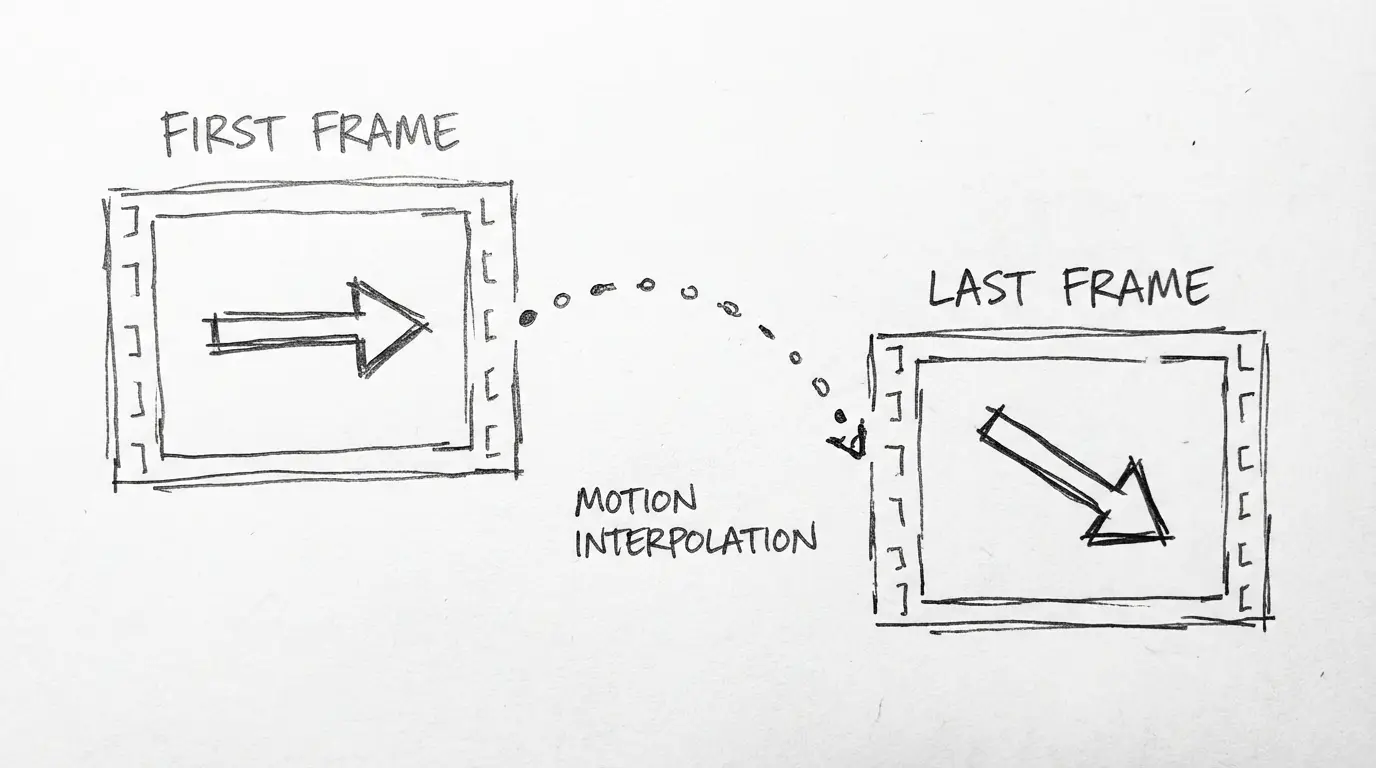
Veo 3.1 Lite は最初のフレームだけを設定することに対応しています(オープニングショットとして商品画像を使う場合です)。動画をA点から開始してB点で終わらせたい、制御されたトランジションを作る場合は、最後のフレームも設定できます。
活用例:
- 開封の披露: 最初のフレーム = 閉じた箱。最後のフレーム = 商品が見える開いた箱。
- ビフォー/アフター: 最初のフレーム = 問題の状態。最後のフレーム = 解決された状態。
- 回転して静止: 最初のフレーム = 斜めの角度の商品。最後のフレーム = 正面を向いたメイン位置。
このテクニックにより、複雑な prompting なしで映画的な制御が得られます。モデルが2つのアンカー間のモーションを補間します。
ユースケース別 Prompt テンプレート
これらの prompt は image-to-video 用に構成されています。Veo 3.1 Lite の完全な prompting 言語(ショット種別、カメラワーク、レンズ制御)について詳しくは、Veo 3.1 Lite Prompt ガイド をご覧ください。
これらの prompt は image-to-video 用に構成されています。画像が視覚のベースラインを提供し、prompt がモーションと雰囲気を指示します。
商品:カメラワーク付きヒーローショット
The camera slowly dollies in toward the product.
Soft studio lighting, clean background.
No movement except the camera push.
SFX: silence.
Duration: 6 seconds.
The product rotates slowly 45 degrees clockwise, revealing its side profile.
Tabletop surface, warm side lighting catching texture details.
Camera static, 85mm lens.
SFX: subtle ambient studio hum.商品:ライフスタイル / 使用シーン
A hand reaches in from the right and picks up the product naturally.
Kitchen counter environment, warm afternoon light through a window.
Handheld camera feel, slight movement.
SFX: ambient kitchen sounds, soft handling noise.
The product is poured/opened/used in the natural way it's intended.
Close-up, 85mm. Soft natural light.
Focus shifts to the key moment of use.
SFX: the sound of the product being used.ファッション / アパレル
Vertical 9:16 format.
The garment moves gently as if in a light breeze.
Model is still; only fabric has motion.
Outdoor natural light, overcast sky for diffused shadows.
SFX: wind, distant ambient sound.
Vertical 9:16 format.
A close-up of the fabric texture. Camera pulls back slowly to reveal the full garment.
Shallow depth of field, 85mm.
SFX: silence.飲食料品
Steam rises gently from the dish/drink.
Overhead camera, static.
Warm practical lighting, dark background for contrast.
SFX: ambient café or kitchen sound, very low.
Close-up. The liquid pours slowly into frame from above, filling the glass.
Camera static, 85mm. Black background, single side light.
SFX: the sound of liquid pouring, ice clinking.ソーシャルフック(縦型、0~4秒)
Vertical 9:16. Close-up.
The product spins once and comes to a stop facing the camera.
Bright, clean background. Quick, energetic motion.
SFX: a short whoosh sound as it spins, then stops.
Duration: 4 seconds.
Vertical 9:16. Medium shot.
The product drops into frame from above and lands with a satisfying impact.
High-contrast background. Slight slow-motion on the impact.
SFX: a clean thud as it lands.
Duration: 4 seconds.完全なワークフロー:写真から投稿済み動画まで
画像を準備する
背景がすっきりした高解像度の商品写真を使用してください。推奨仕様は、短辺が1000px以上のPNGまたはJPGで、一般的なECサイトのヒーローイメージの形式です。
フォーマットを選択する
Instagram/TikTok/Shortsの場合: 9:16 縦長、6秒。ウェブサイト埋め込みやYouTubeの場合: 16:9、8秒。素早くソーシャルで注目を集める場合: 9:16、4秒。
ジェネレーターにアップロードする
NanoBanana の Veo 3.1 Lite にアクセスし、画像から動画作成モードに切り替えて商品写真をアップロードしてください。
prompt を追加する
上のテンプレートのいずれかをコピーするか、自分で作成してください。覚えておいてほしいのは、外見は画像が担っているため、prompt で指定する必要があるのは動き、カメラ、オーディオだけだということです。
生成して比較する
同じ画像を使い、prompt を少しずつ変えて2~3種類のバリエーションを生成してください(例:前進ドリー vs 固定 + 回転)。8秒クリップ1つあたり20クレジットなので、3バリエーションで60クレジットになります。
ダウンロードして投稿する
ソーシャル投稿の場合、後加工は必要ありません。商品ページや広告に使用する場合は、基本的な動画編集ツールでクリップをトリミングしたりループさせたりすることをおすすめします。
よくある問題と修正方法
1~2秒経過後に商品が歪んで見える
モデルが過剰にアニメーションを生成しています。prompt 内で動きを抑えてください: camera static または minimal movement, only [specific element] moves を追加します。
背景が意図せず変化してしまう
背景のディテールが多すぎて、モデルが再解釈してしまっています。よりシンプルな背景で撮り直すか、prompt に background unchanged, only product moves を追加してください。
動画がスライドショーのようで、滑らかな動きにならない
連続した動きを得るためにPrompt に: smooth continuous camera move または fluid 360 rotation と記述してください。断続的な動作の記述は避けてください。
縦長画像を使ったら9:16の出力に黒い枠が出る アップロード前に入力画像を9:16 にクロップまたは余白追加して調整してください。縦横比が不一致だとモデルがレターボックス形式で出力してしまいます。
商品制作において Veo 3.1 Lite でできないこと
- 4K に対応していない — 最大解像度は1080pです。ウェブとソーシャルでは問題ありませんが、大判プリントやデジタルサイネージには不向きです。
- クリップの延長に対応していない — Liteティアでは、生成したクリップを8秒より長く延長することはできません。
- 複数商品の比較に対応していない — 2つの商品を相互作用させるアニメーションの生成は安定性が低いです。別々に生成してから編集で結合してください。
- テキストオーバーレイに対応していない — モデルが読みやすいテキスト・価格・コールアウトを追加できると期待しないでください。これらは後工程で追加してください。
まずはお試しください:初回生成は無料
NanoBanana の Veo 3.1 Lite ジェネレーターは、prompt と同じインターフェースで image-to-video をサポートしています。商品写真をアップロードし、上からprompt を貼り付け、フォーマットを選んで生成するだけです。
8秒あたり20クレジット。Veo 3.1 の半額です。
よくある質問
開示
動画サンプルは Veo 3.1 モデルファミリーのフッテージを使用しています。ワークフローの推奨事項は、image-to-video 生成の実用的なテストに基づいています。結果は入力画像の品質と prompt の具体性によって異なります。
著者

カテゴリ
続きを読む
Seedance 2.0: ByteDanceのマルチモーダルAI動画生成 完全ガイド
マルチモーダル入力、ネイティブな音声・動画同期、2K解像度出力、ディレクター級のクリエイティブコントロールを特徴とする、ByteDanceの革新的なAI動画モデル「Seedance 2.0」の全貌をご紹介します
Wan 2.7:先頭フレーム制御と15秒クリップ生成に対応したAlibabaの新しい動画モデル
Wan 2.7は、Alibabaのオープンソース動画モデルラインナップに、先頭/最終フレーム制御、multi-reference 動画入力、指示ベースの編集機能を追加しました。Wan 2.6からの変更点を解説します。
PixVerse V6:シネマカメラコントロール、ネイティブオーディオ、15秒クリップ
PixVerseは2026年3月30日にV6をローンチしました。20種類以上のシネマカメラコントロール、ネイティブオーディオ同期、マルチショットエンジン、最長15秒の1080pネイティブ出力に対応しています。本記事では変更点と、あなたのワークフローに適しているかどうかを解説します。