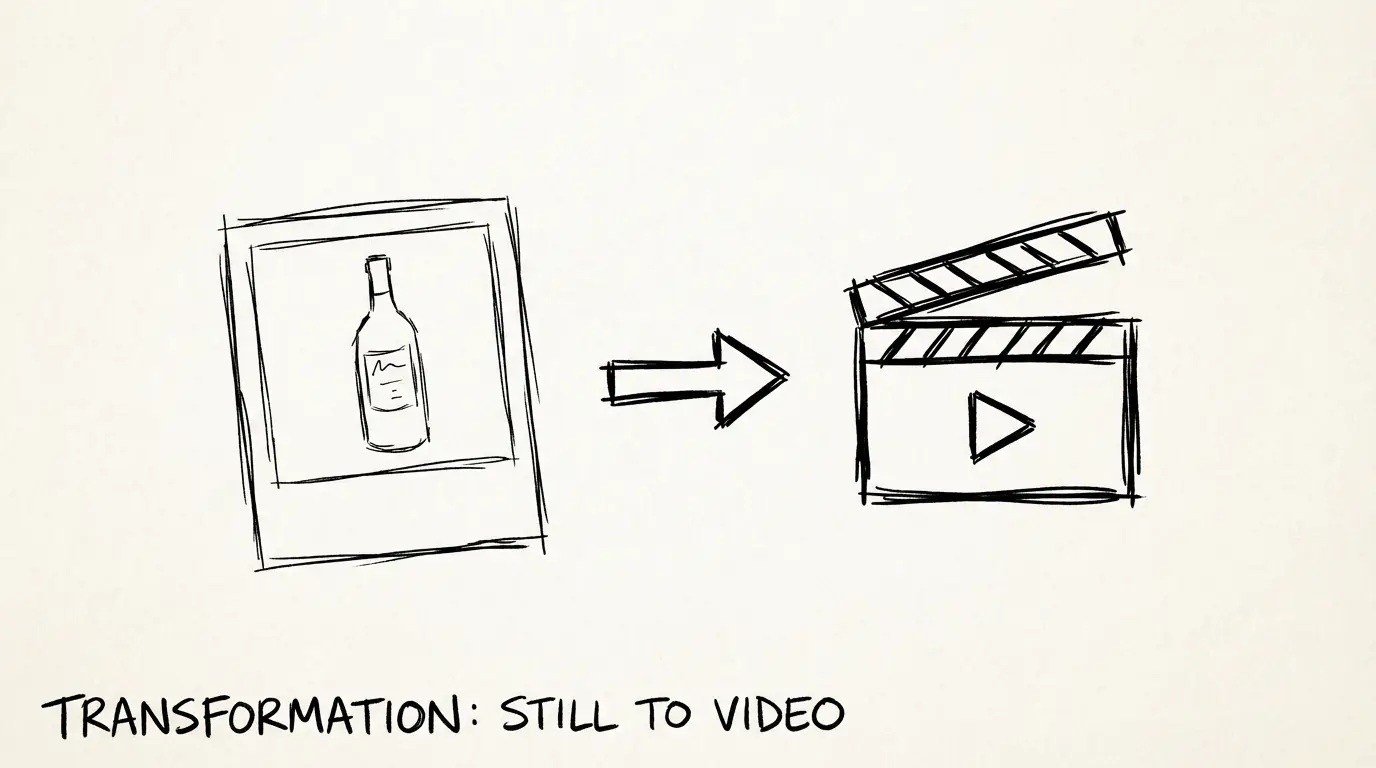
Veo 3.1 Lite Imagen a Vídeo: Convierte fotos de productos en clips en menos de un minuto
Cómo usar el modo image-to-video de Veo 3.1 Lite para crear demostraciones de productos, contenido para redes sociales y vídeos de marca a partir de fotos fijas — con ejemplos reales y consejos de flujo de trabajo
Lo que aprenderás
- ✅ Cómo funciona image-to-video en Veo 3.1 Lite frente a la generación solo de texto
- ✅ Qué tipos de fotos de producto funcionan mejor (y cuáles no)
- ✅ Técnica de primer y último fotograma para movimiento controlado
- ✅ Plantillas de Prompt para demostraciones de productos, moda, comida y ganchos sociales
- ✅ Flujo de trabajo completo: foto → vídeo → listo para publicar
Por qué Imagen a Vídeo cambia el flujo de trabajo
¿No conoces Veo 3.1 Lite? Lee primero la vista general del modelo para conocer precios, especificaciones y cómo encaja en la línea de modelos de vídeo de Google.
Texto a vídeo es potente, pero es probabilístico: tú describes lo que quieres y el modelo lo interpreta. Imagen a vídeo es diferente: tú proporcionas el punto de partida visual exacto, y el modelo anima desde ahí.
Para trabajo con productos, esto es fundamental. Tu producto tiene una forma, color, material y marca específicos. Los prompt de texto no pueden garantizar esos detalles. Una imagen sí puede.
Veo 3.1 Lite admite image-to-video en 720p y 1080p, en formatos 16:9 y 9:16, para duraciones de 4 s, 6 s u 8 s. Con 20 créditos por 8 segundos en NanoBanana, es suficientemente económico para generar 5–10 variaciones de una misma toma de producto y elegir la mejor.
Cómo funciona Imagen a Vídeo en Veo 3.1 Lite
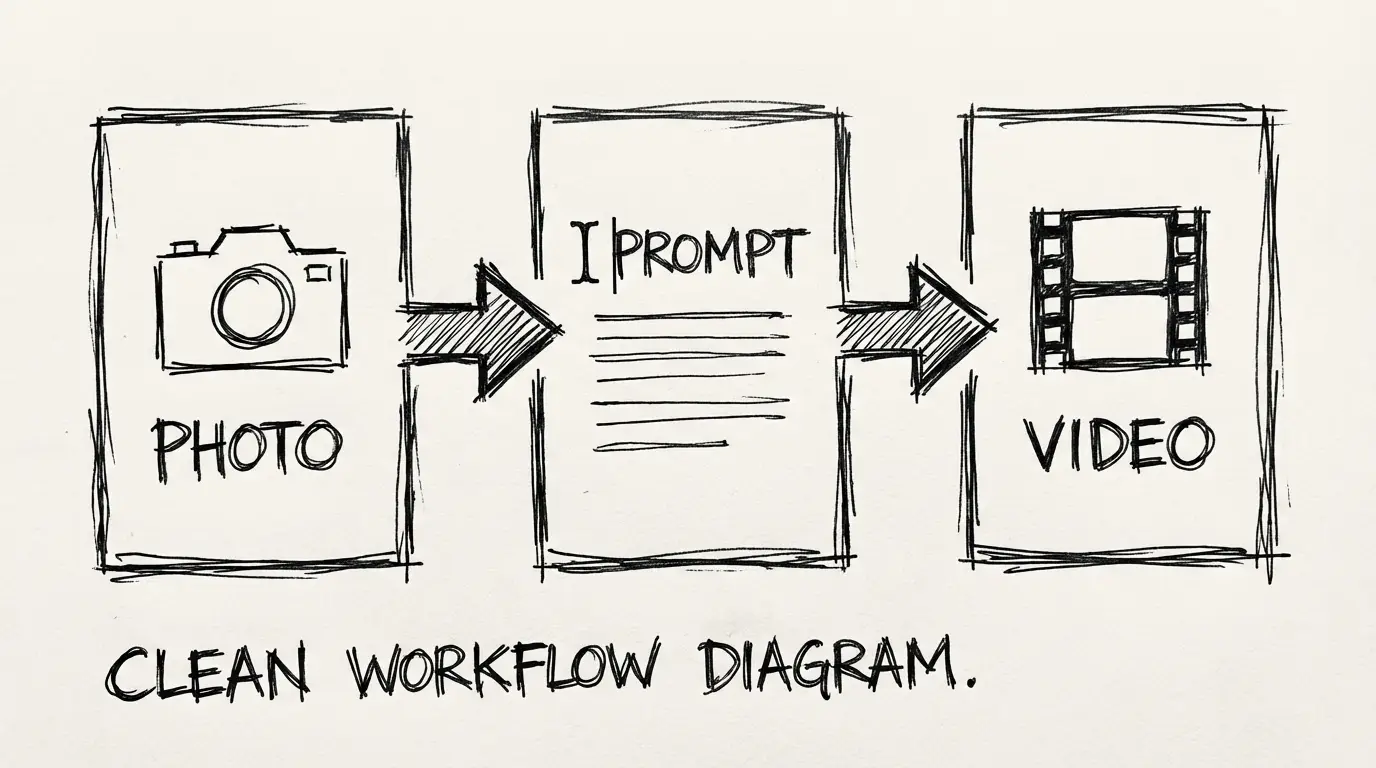
Tú proporcionas:
- Una imagen de referencia — el primer fotograma del vídeo
- Un prompt de texto — describe el movimiento, la cámara y el audio
- Duración y relación de aspecto — 4s/6s/8s, 16:9 o 9:16
El modelo genera un vídeo que empieza desde tu imagen y anima a partir de ella. La imagen establece la identidad visual; el prompt indica qué pasa a continuación.
La conclusión clave: la imagen se encarga de "cómo se ve", el prompt se encarga de "qué hace". Dividiendo el trabajo de esta forma obtienes resultados consistentes y dirigidos.
Qué hace que una imagen de entrada sea buena
No todas las fotos de producto funcionan igual de bien. Aquí tienes lo que el modelo maneja de forma fiable frente a lo que causa problemas:
| Tipo de imagen | Funciona bien | Evitar |
|---|---|---|
| Producto limpio sobre fondo liso/sencillo | ✅ | |
| Producto principal único, centrado | ✅ | |
| Alto contraste, bordes nítidos | ✅ | |
| Múltiples SKUs en un mismo fotograma | ❌ Confunde el foco del movimiento | |
| Mucho texto/marcas de agua sobre el producto | ❌ Artefactos de texto en el movimiento | |
| Imágenes de baja resolución o muy comprimidas | ❌ Salida borrosa | |
| Planos muy abiertos con producto pequeño | ❌ El producto pierde detalle |
Buena práctica: Usa la versión más limpia de tu foto de producto — la misma que usarías para un listado de comercio electrónico. Elimina los fondos si es posible. Cuanto más limpia sea la entrada, más control tendrás sobre la salida.
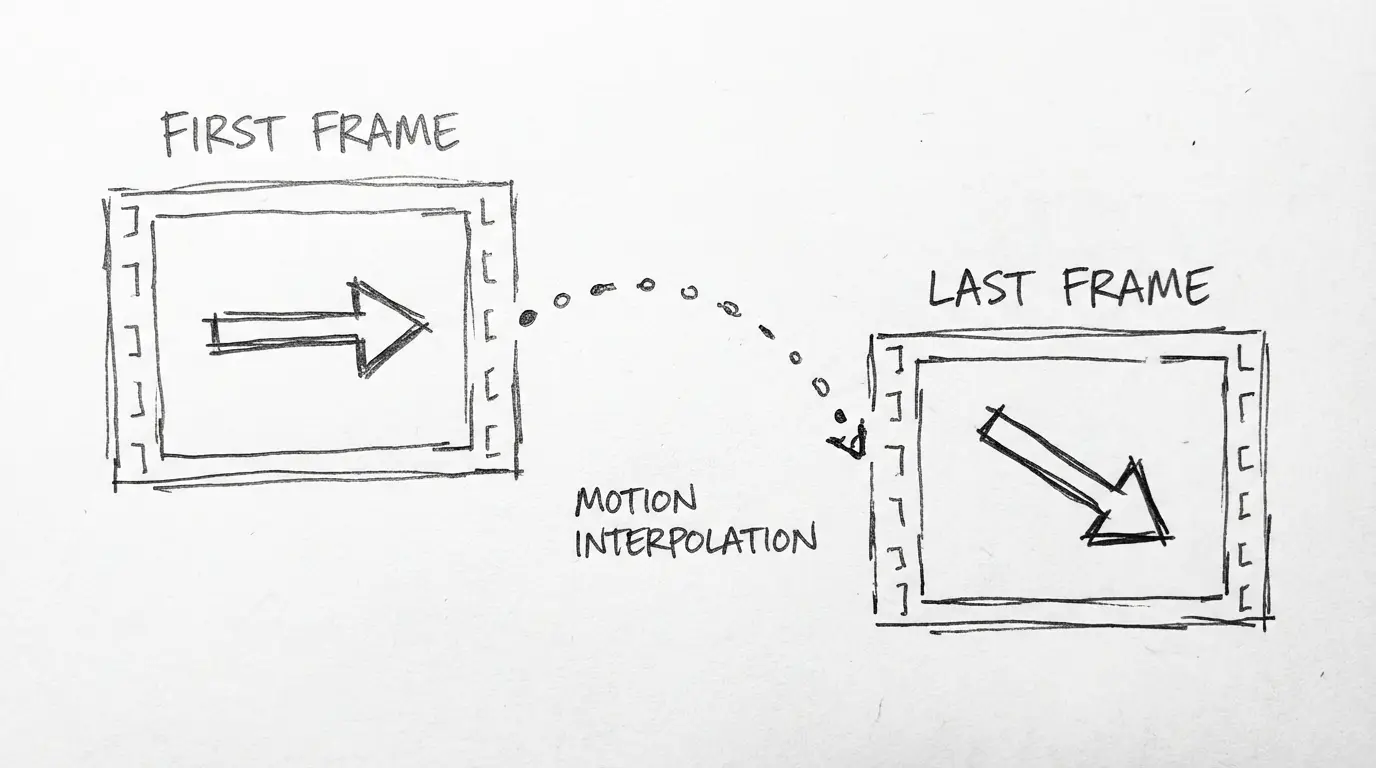
La técnica del primer fotograma / último fotograma
Veo 3.1 Lite admite configurar solo el primer fotograma (tu imagen de producto como plano de apertura). Para transiciones controladas — donde quieres que el vídeo empiece en el punto A y acabe en el punto B — también puedes configurar un último fotograma.
Casos de uso:
- Revelado de unboxing: Primer fotograma = caja cerrada. Último fotograma = caja abierta con el producto visible.
- Antes/después: Primer fotograma = estado problemático. Último fotograma = estado resuelto.
- Rotación y estabilización: Primer fotograma = producto en ángulo. Último fotograma = posición principal de frente.
Esta técnica te da un control cinematográfico sin necesidad de prompting complejo. El modelo interpola el movimiento entre tus dos puntos de anclaje.
Plantillas de Prompt por caso de uso
Estas prompts están estructuradas para image-to-video. Para profundizar en el lenguaje completo de prompting de Veo 3.1 Lite — tipos de plano, movimientos de cámara, control de lente — consulta la Guía de Prompt de Veo 3.1 Lite.
Estos prompts están estructurados para image-to-video. La imagen proporciona la base visual — el prompt dirige el movimiento y la sensación.
Producto: Plano principal con movimiento de cámara
The camera slowly dollies in toward the product.
Soft studio lighting, clean background.
No movement except the camera push.
SFX: silence.
Duration: 6 seconds.
The product rotates slowly 45 degrees clockwise, revealing its side profile.
Tabletop surface, warm side lighting catching texture details.
Camera static, 85mm lens.
SFX: subtle ambient studio hum.Producto: Estilo de vida / En uso
A hand reaches in from the right and picks up the product naturally.
Kitchen counter environment, warm afternoon light through a window.
Handheld camera feel, slight movement.
SFX: ambient kitchen sounds, soft handling noise.
The product is poured/opened/used in the natural way it's intended.
Close-up, 85mm. Soft natural light.
Focus shifts to the key moment of use.
SFX: the sound of the product being used.Moda / Ropa
Vertical 9:16 format.
The garment moves gently as if in a light breeze.
Model is still; only fabric has motion.
Outdoor natural light, overcast sky for diffused shadows.
SFX: wind, distant ambient sound.
Vertical 9:16 format.
A close-up of the fabric texture. Camera pulls back slowly to reveal the full garment.
Shallow depth of field, 85mm.
SFX: silence.Comida y bebida
Steam rises gently from the dish/drink.
Overhead camera, static.
Warm practical lighting, dark background for contrast.
SFX: ambient café or kitchen sound, very low.
Close-up. The liquid pours slowly into frame from above, filling the glass.
Camera static, 85mm. Black background, single side light.
SFX: the sound of liquid pouring, ice clinking.Gancho social (Vertical, 0–4 segundos)
Vertical 9:16. Close-up.
The product spins once and comes to a stop facing the camera.
Bright, clean background. Quick, energetic motion.
SFX: a short whoosh sound as it spins, then stops.
Duration: 4 seconds.
Vertical 9:16. Medium shot.
The product drops into frame from above and lands with a satisfying impact.
High-contrast background. Slight slow-motion on the impact.
SFX: a clean thud as it lands.
Duration: 4 seconds.Flujo de trabajo completo: De foto a vídeo publicado
Prepara tu imagen
Usa una foto de producto de alta resolución con un fondo limpio. Idealmente: PNG o JPG de más de 1000px en el lado más corto, tu formato estándar de imagen principal para comercio electrónico.
Elige tu formato
Para Instagram/TikTok/Shorts: 9:16 vertical, 6s. Para incrustaciones en sitios web o YouTube: 16:9, 8s. Para ganchos sociales rápidos: 9:16, 4s.
Sube al generador
Ve a Veo 3.1 Lite on NanoBanana, cambia al modo Imagen a Video y sube tu foto de producto.
Añade tu prompt
Copia una de las plantillas de arriba o escribe la tuya propia. Recuerda: la imagen se encarga de la apariencia — tu prompt solo necesita indicar el movimiento, la cámara y el audio.
Genera y compara
Genera 2–3 variaciones con la misma imagen pero prompt ligeramente diferentes (por ejemplo, aproximación de cámara frente a estática + rotación). A 20 créditos por clip de 8s, 3 variaciones = 60 créditos.
Descarga y publica
No se necesita post-procesamiento para redes sociales. Para páginas de producto o anuncios, puede que quieras recortar o hacer un bucle del clip en un editor de vídeo básico.
Problemas comunes y soluciones
El producto se ve distorsionado después de uno o dos segundos
El modelo está animando de más. Reduce el movimiento en tu prompt: añade camera static o minimal movement, only [specific element] moves.
El fondo cambia de forma inesperada
Tu fondo tiene demasiados detalles y el modelo lo reinterpreta. Vuelve a fotografiar con un fondo más simple o añade background unchanged, only product moves a tu prompt.
El vídeo parece una presentación de diapositivas, no un movimiento fluido
Prompt para movimiento continuo: smooth continuous camera move o fluid 360 rotation. Evita descripciones de acción que arrancan y se detienen.
La imagen vertical muestra barras negras en la salida de 9:16 Recorta o ajusta tu imagen de entrada a 9:16 antes de subirla. Las proporciones de aspecto no coinciden hacen que el modelo añada bandas negras.
Qué no puede hacer Veo 3.1 Lite (para trabajo con productos)
- No 4K — el máximo es 1080p. Es adecuado para web y redes sociales; no sirve para impresión de gran formato o señalización digital.
- Sin extensión — no puedes extender un clip generado más allá de 8 segundos en el plan Lite.
- Sin comparación de múltiples productos — animar dos productos interactuando no es fiable. Generalos por separado y edítalos juntos.
- Sin superposición de texto — no confíes en que el modelo añada texto/precios/anotaciones legibles. Añádelos en post-procesado.
Pruébalo: Primera generación gratuita
El generador Veo 3.1 Lite de NanoBanana admite image-to-video con la misma interfaz de prompt. Sube tu foto de producto, pega un prompt de arriba, elige tu formato y genera.
→ Probar Veo 3.1 Lite Imagen a Video
20 créditos por 8 segundos. La mitad del costo de Veo 3.1.
Preguntas frecuentes
Divulgación
Los ejemplos de vídeo usan material de la familia de modelos Veo 3.1. Las recomendaciones de flujo de trabajo se basan en pruebas prácticas de la generación de image-to-video. Los resultados varían según la calidad de la imagen de entrada y la especificidad de prompt.
Autor

Categorías
Más artículos
Wan 2.7: El nuevo modelo de vídeo de Alibaba con control por primer fotograma y clips de 15 segundos
Wan 2.7 incorpora control de primer/último fotograma, entrada de vídeo multi-reference y edición basada en instrucciones a la línea de modelos de vídeo de código abierto de Alibaba. Aquí tienes todos los cambios respecto a Wan 2.6.
Agente de imágenes IA: Genera una sola imagen o cien — Sin cambiar de herramientas
El agente de imágenes IA de NanoBanana se encarga de todo, desde imágenes de concepto individuales hasta transferencias de estilos por lotes en una sola conversación. No se requiere ingeniería de prompt
Wan 2.7 contra Wan 2.6: Qué cambió realmente
Wan 2.7 añade control de primer y último fotograma, entrada de imagen de 9 cuadrículas, video multi-reference, y edición de instrucciones que no tenía Wan 2.6. Aquí tienes un desglose práctico de lo que cambió y cuándo usar cada uno.